FileAdministrator
Your folders organize themselves. And nothing gets lost.
Pick a folder —Downloads, Desktop or any other— and FileAdministrator moves each file where it belongs, by type and by date. Before moving anything it shows you the plan, and everything it does can be undone.
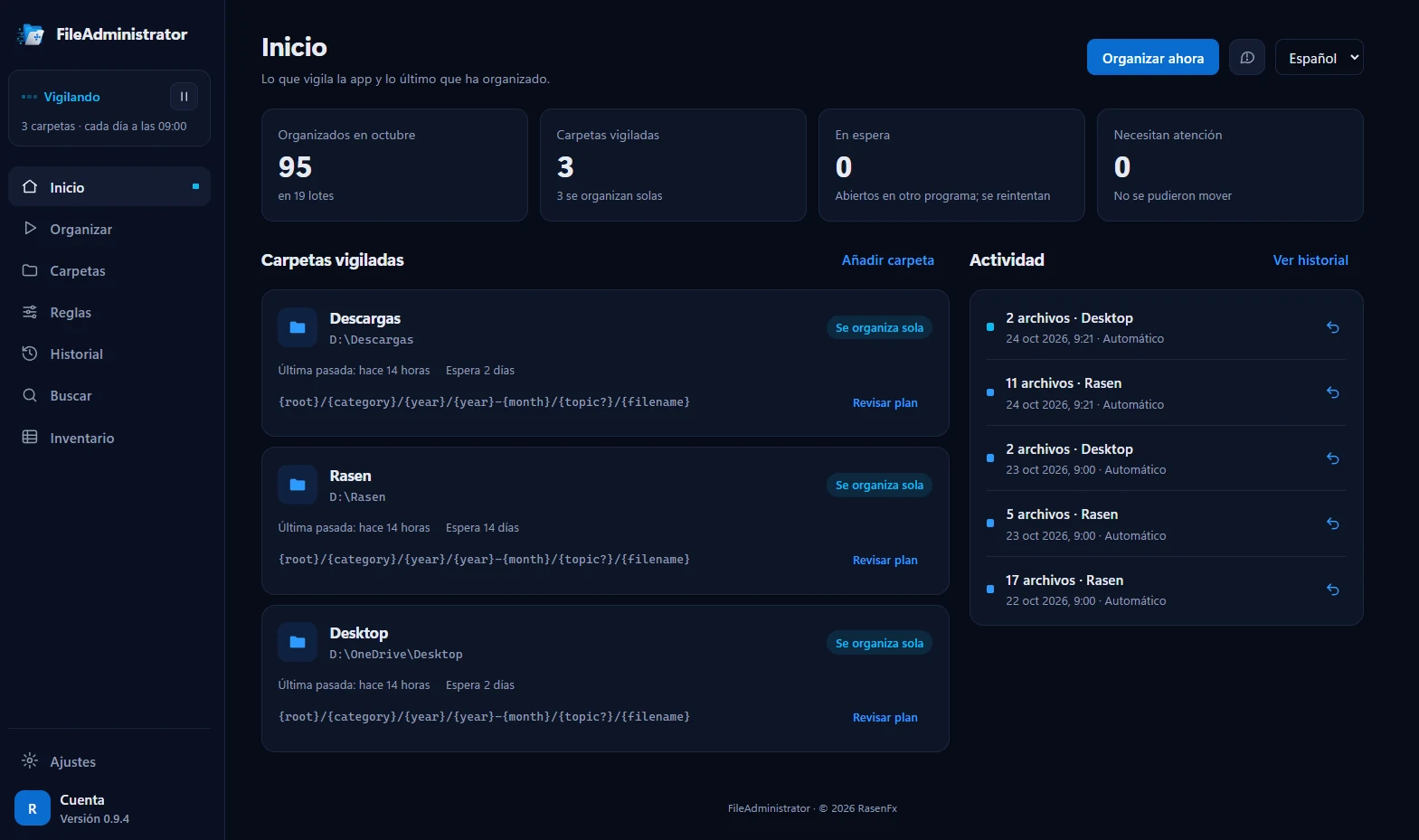
64-bit Windows · macOS coming soon · Interface in English and Spanish
Is your Downloads folder a mess?
Invoices, screenshots, installers and documents pile up with no order, and finding anything turns into an endless search. FileAdministrator works in the background so every file ends up where it should, without you having to think about it and without any fear of losing something.
How it works
Pick a folder
Downloads, Desktop or any folder you want to keep tidy.
Review the plan
You see every file, where it will go and why. You can untick anything you don’t want moved.
Confirm
Files are sorted by type and, within each type, by year and month.
Put it on autopilot
From the system tray: once a day, at regular intervals or as soon as a file arrives.
See FileAdministrator in action
Real screenshots of version 0.9.4 for Windows.
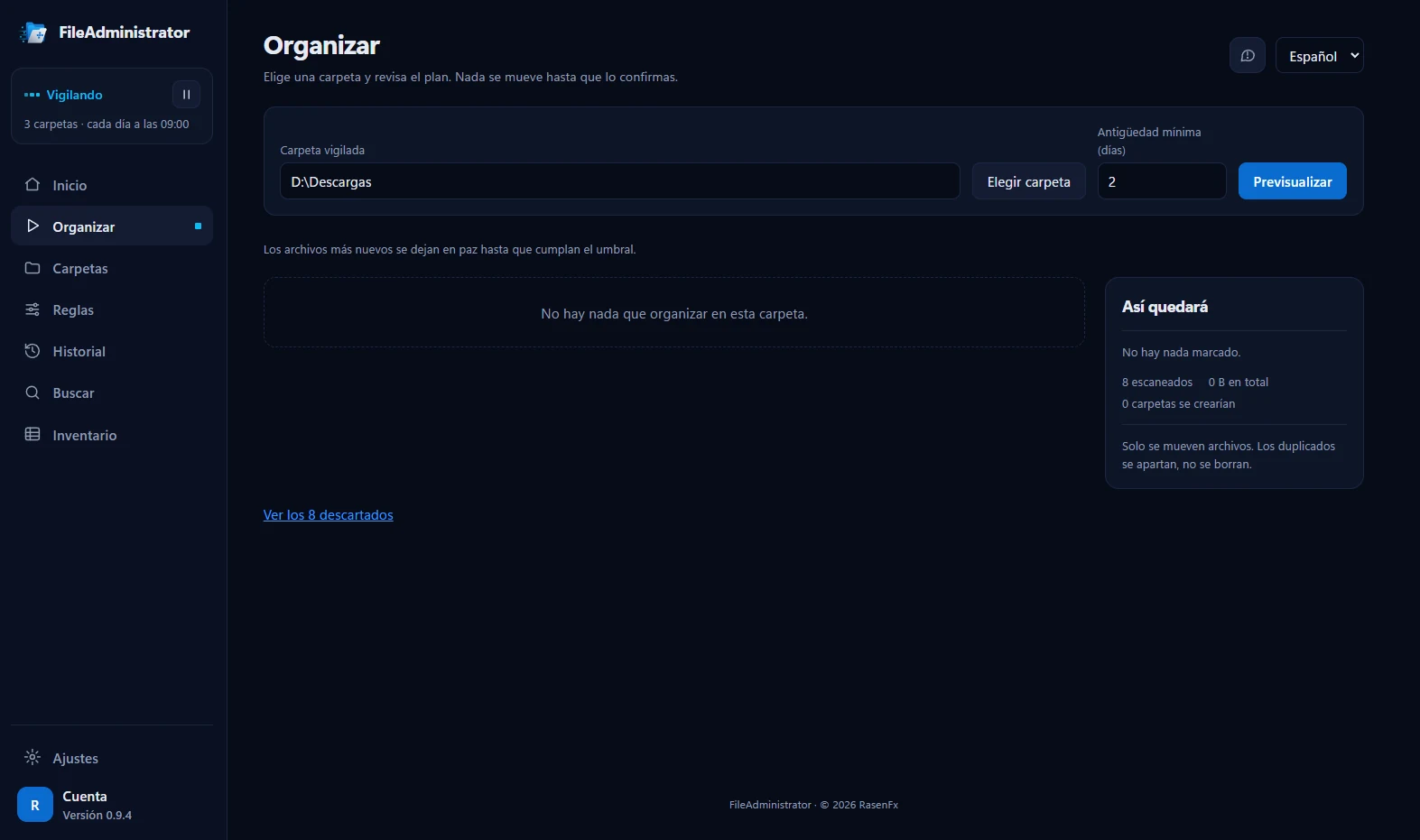
Review the plan before anything moves
You pick a folder and the minimum age of the files, and FileAdministrator shows you what it would move and where. Nothing moves until you confirm.
Only files are moved: duplicates are set aside, never deleted.
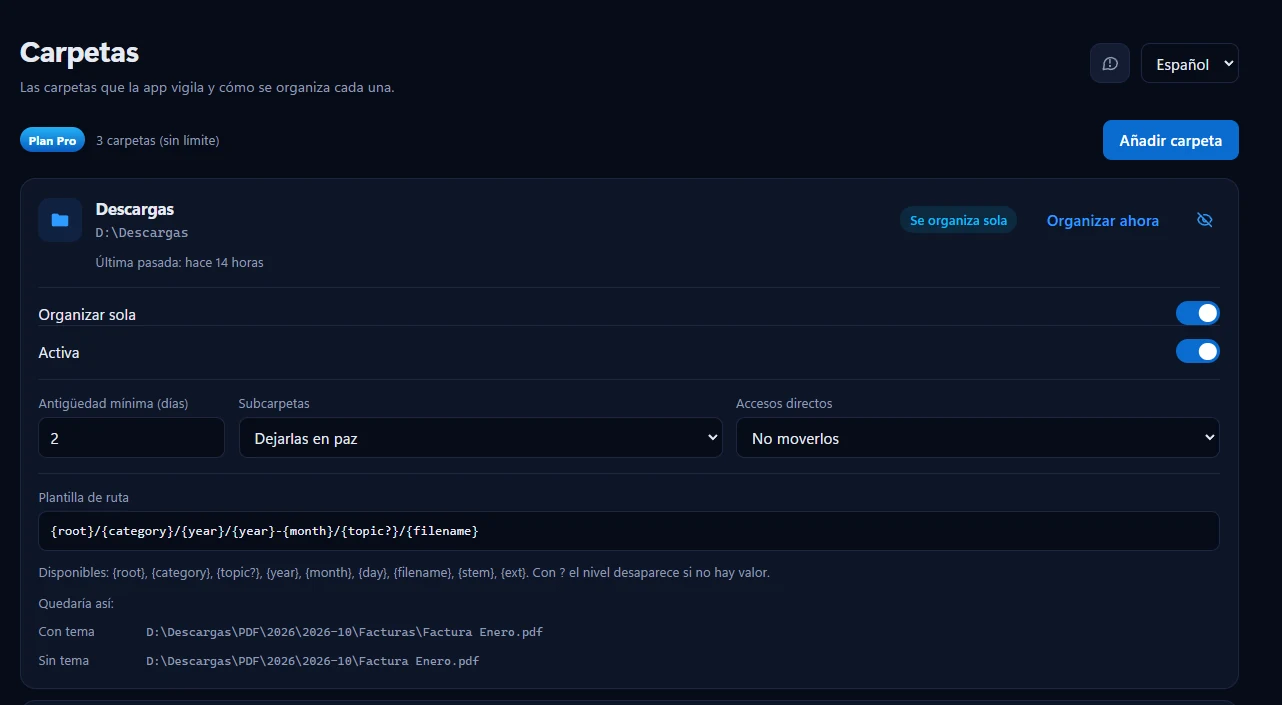
Every folder, its own way
Decide which folders organize themselves, how many days to wait before moving a file and what to do with subfolders and shortcuts.
With Pro, the path template lets you choose the exact structure —category, year, month— and you see how it will look before applying it.
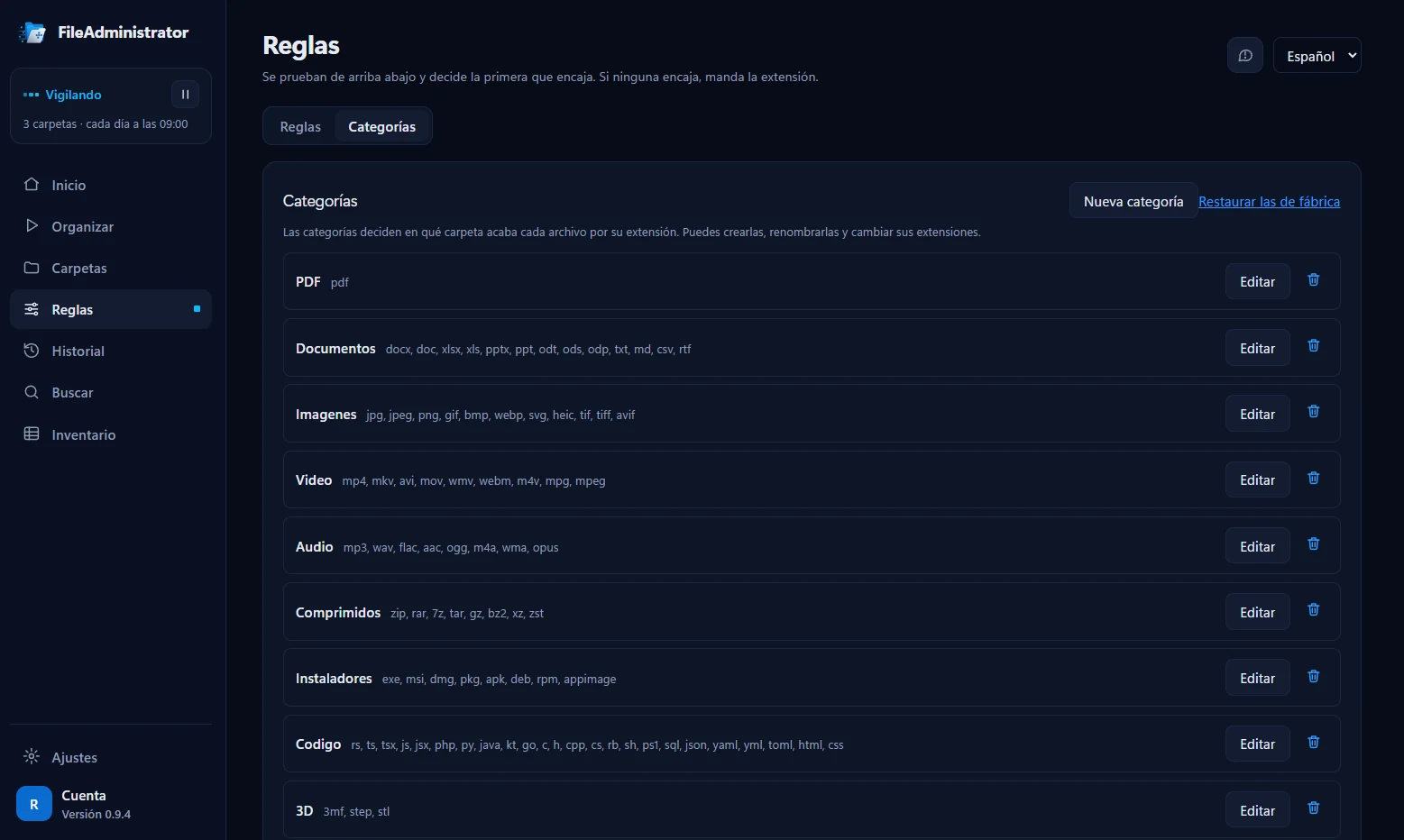
Categories that fit you
PDF, Documents, Images, Video, Audio, Archives, Installers, Code, 3D… Each category decides which folder a file goes to based on its extension.
You can create them, rename them and change their extensions, and go back to the defaults whenever you like.
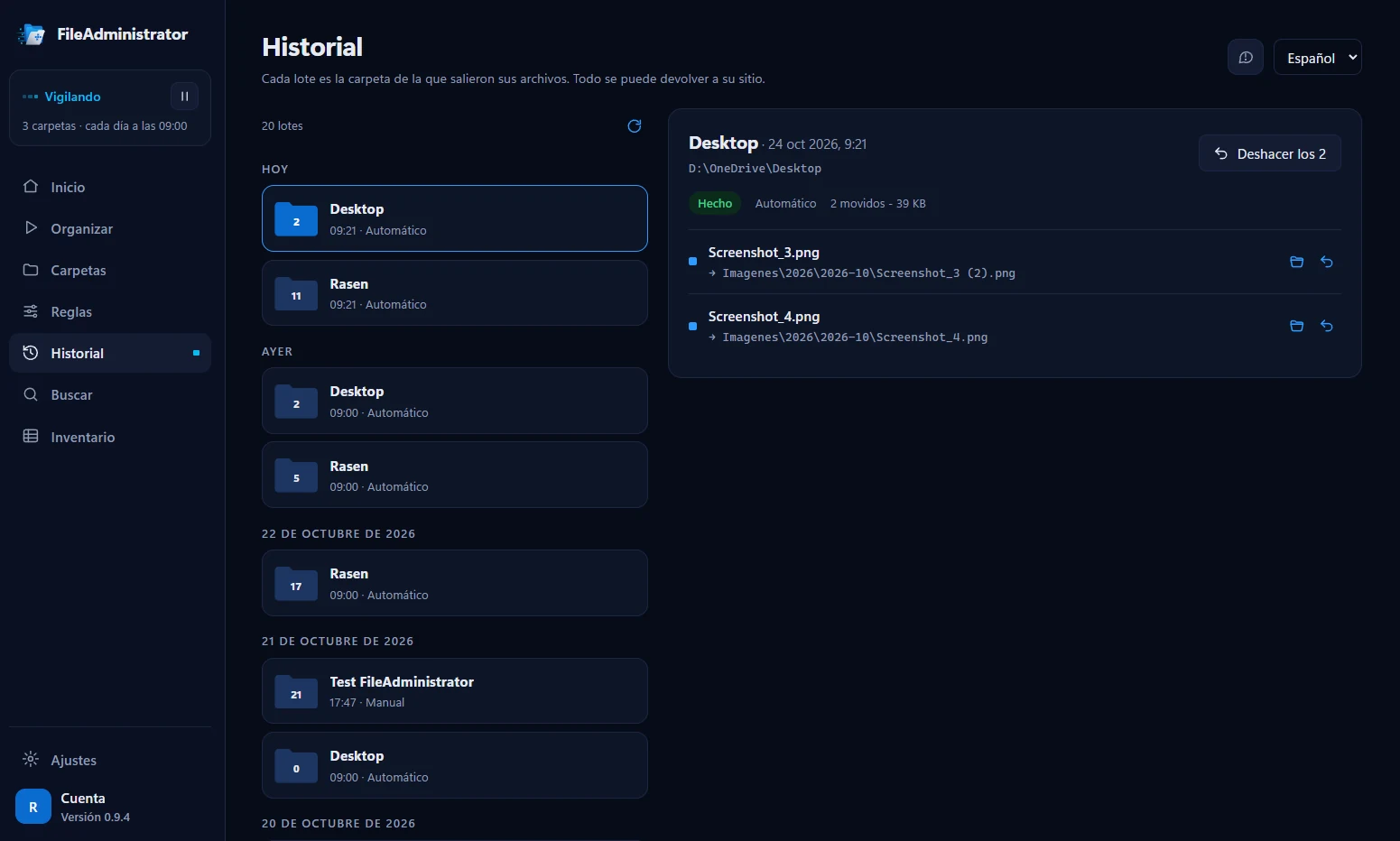
Everything can be undone
Every run is saved as a batch, with the folder the files came from and where they went.
Send a single file or the whole batch back where it was with one click.
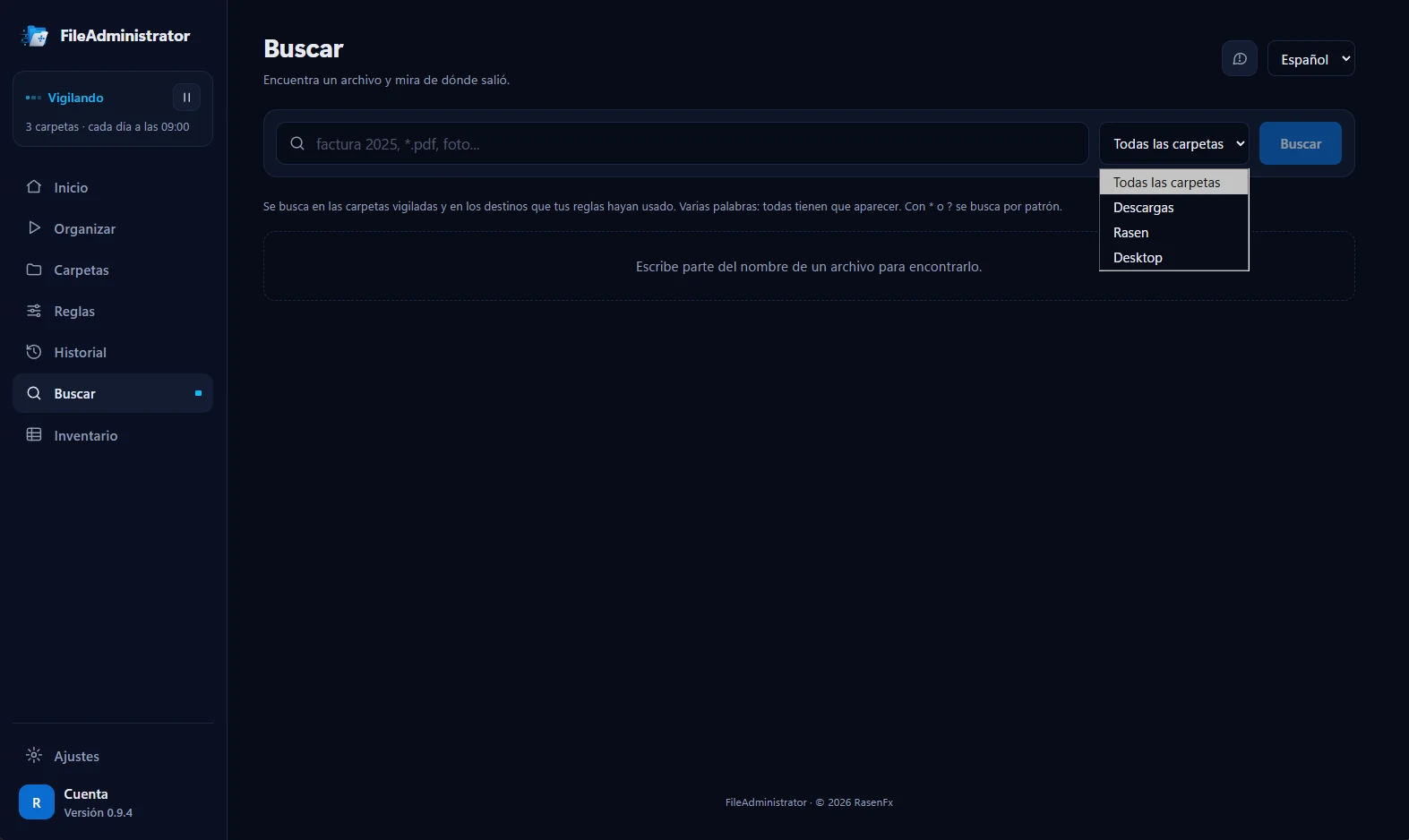
Find any file
Search the watched folders and the destinations your rules used, and see where each file came from.
Several words at once, or patterns with * and ?.
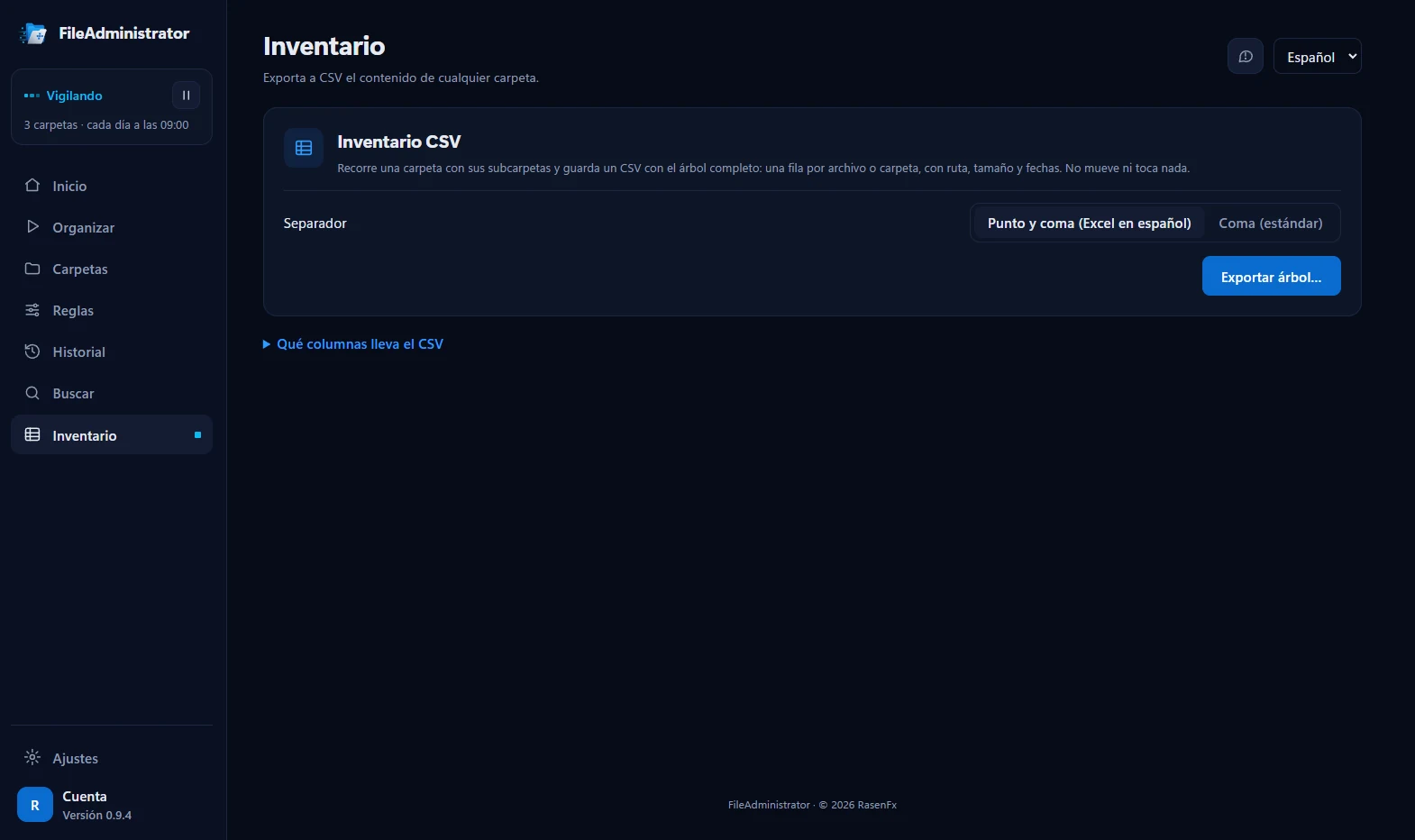
CSV inventory
Walks through a folder and all its subfolders and saves a CSV with the complete tree: path, size and dates of every file.
With a semicolon separator for Excel in regions that use it, or the standard comma. It doesn’t move or touch anything. Included in Pro.
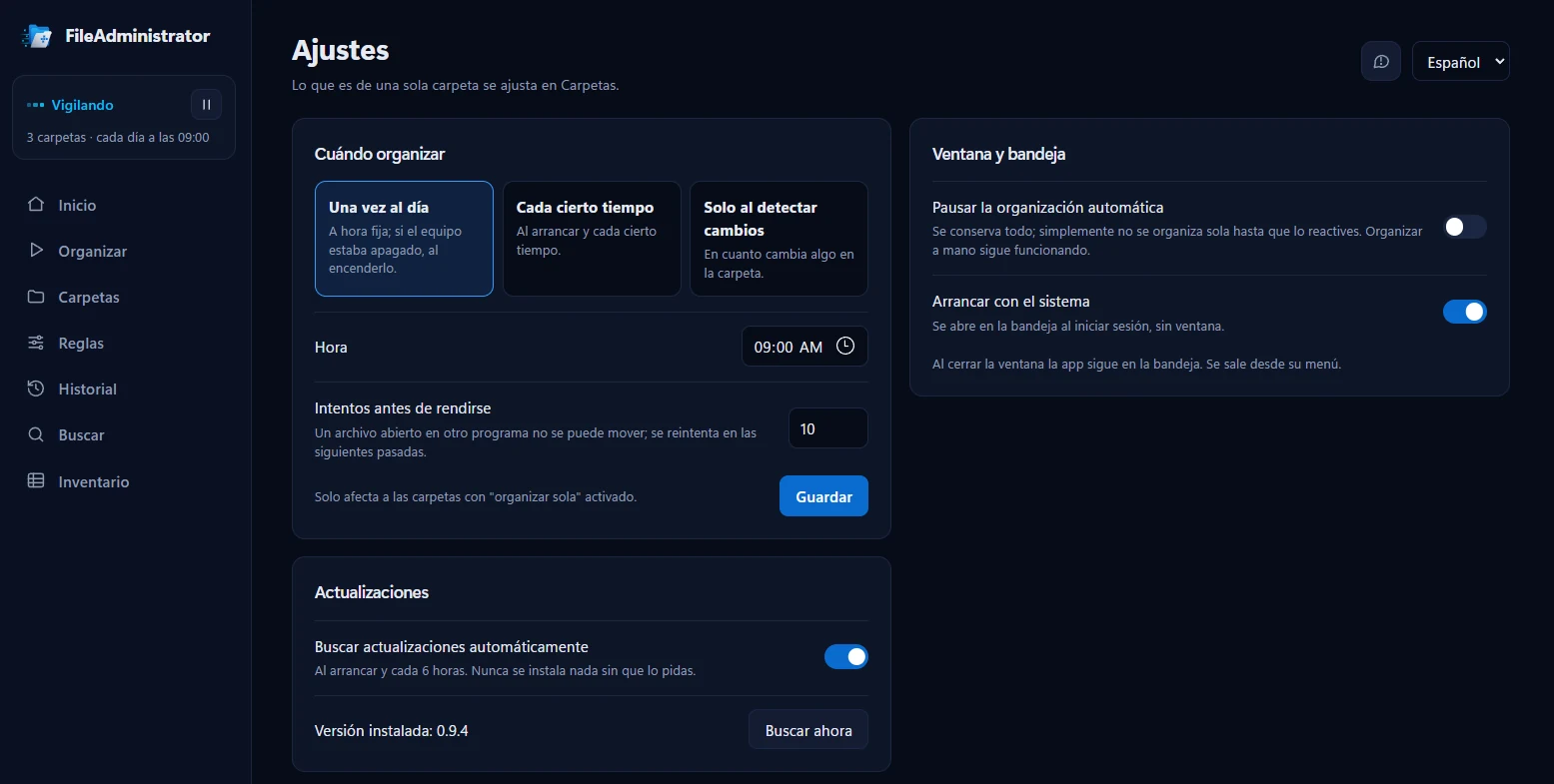
You decide when
Once a day at a set time, at regular intervals or as soon as something changes in the folder. If a file is open in another program, it is retried on the next run.
It starts with the system in the tray and checks for updates on its own; it never installs anything without your say-so.
Designed so you never lose a file
Never deletes
It only moves. Not even duplicates: identical files go to a separate duplicates folder so you can decide.
Everything can be undone
The history keeps every move. Undo a whole batch or a single file, whenever you want.
Nothing without your permission
The first time you always see the preview. No file moves before you confirm.
Your files never leave your computer
Everything is processed locally. The app doesn’t upload your files, their names or their paths.
Features
Sorted by type and date
PDF, Documents, Images, Video, Audio, Archives, Installers and Code, each in its own folder and by year and month. Categories are editable.
In the background
Lives in the system tray and starts with Windows. Schedule a daily run, an interval or a run when new files appear, or click “Organize now”.
Search
Find any file by name, see where it came from and open it, show it in Explorer or send it back where it was.
Advanced rules Pro
Sort by words in the name, by size or by the website the file was downloaded from, with a visual editor.
Destinations of your choice Pro
Send each file type, or anything that matches a rule, to any folder on the disk. For example, invoices straight to Documents/Invoices.
CSV inventory Pro
Export the complete tree of any folder, with sizes and dates, ready to open in Excel.
Path templates Pro
Decide how each folder’s path is built, with a live preview of how it will look.
Respects what you’re using
Skips unfinished downloads and open files, and retries them on the next run. It only moves what hasn’t been touched for days.
Always up to date
New versions arrive on their own, and you can report a problem or suggest an improvement from inside the app.
Coming soon AI topic classification · Sync your settings across computers · macOS
Plans
Free
To bring order to your Downloads folder
- 1 watched folder
- Sorting by file type and date
- Preview, history and undo
- Automatic mode and search
- No account needed
Installer for 64-bit Windows
Pro
To keep your whole computer in order
- Unlimited watched folders
- Advanced rules: keywords, size and source
- Destinations in any folder on the disk
- Custom path templates
- CSV inventory
- AI classification and sync, when they arrive
Pricing to be announced. The Pro license is tied to your account and is activated with a key inside the app.
Requirements
- Windows 64-bit — available
- macOS — coming soon
- Android and iOS — later, in “organize on demand” mode
- Languages — English and Spanish
Frequently asked questions
- Can it delete my files?
No. FileAdministrator only moves files, it never deletes them. Exact duplicates are set aside in a separate duplicates folder so you can decide what to do with them.
- What if I don’t like the result?
From the history you can undo a whole batch or a specific file, and everything goes back where it was. If a different file already exists at the original path, the app doesn’t overwrite it: it lets you know.
- Are my files uploaded anywhere?
No. All the organizing happens on your computer. When you send a report from the app, you first see exactly what is attached (version, system and language); never paths, names or the contents of your folders.
- Do I need an account or an internet connection?
The Free plan works without an account. For Pro you sign in once and activate your key; after that the app keeps working even if you are offline for days.
- What happens to files I’m using?
They are skipped. Open files and unfinished downloads are left alone and retried on the next run. By default only files that have been in the folder for more than 2 days are moved.
- On how many computers can I use Pro?
The license is tied to your account and supports several computers. From the app you can see which ones are active and free one up.
Get organized today, risk-free
Start for free with your Downloads folder and move to Pro whenever you want more.